
Creating a Tournament
The composition screen from top to bottom. Basics, format, rebuys, re-entries, add-ons, late registration, components, and house rules.
The Tournament tab is where you build your event. It is one screen, and you fill it in top to bottom. When everything it needs is present, the Start Tournmanet button lights up.
This chapter covers every field except payouts and seating, which are big enough to have their own chapters.
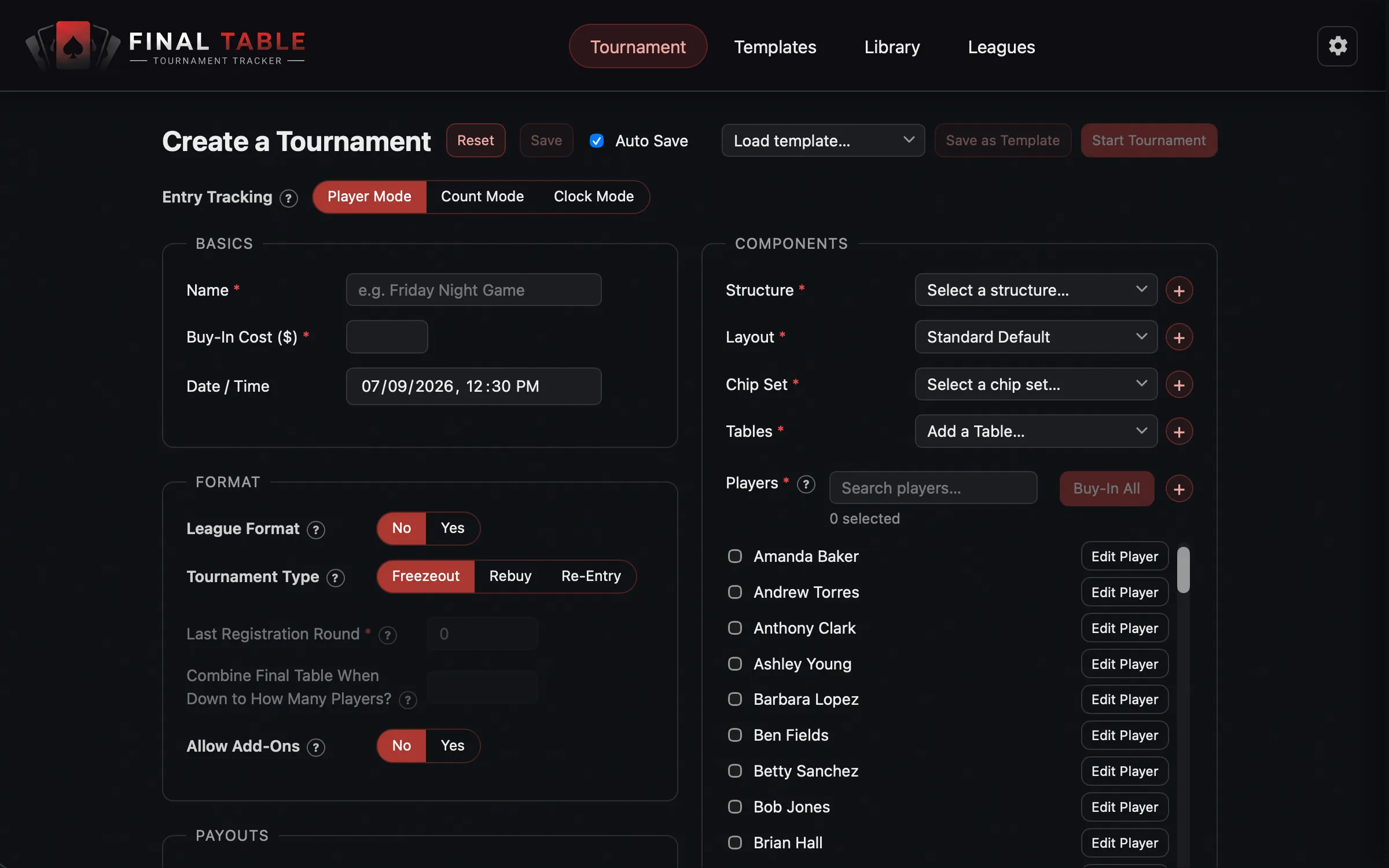 The composition screen. Fill it in, hit Start.
Before you start filling it in
Two things at the top of the screen are worth knowing about.
Auto Save is a checkbox in the toolbar. Leave it on and the app saves your work as you go, so a half-built tournament survives you closing the app.
Load template… and Save as Template let you stop doing this every week. Build your regular game once, save it as a template, and next time load it and you are done in about five seconds. Templates live in the Templates tab.
Basics
| Field | What it does | Limits |
|---|---|---|
| Name | What this tournament is called. | Required. Up to 50 characters. Names must be unique: if you try to reuse one you will be told “A tournament with this name already exists. Create a unique name.” |
| Buy-In Cost ($) | What a player pays to enter. This is what builds the prize pool. | Hidden in Clock Mode. Can be $0, in which case there is no prize pool and no payouts to set. |
| Date / Time | When it is happening. | Optional. |
Entry Tracking
Three modes, chosen with a segmented control near the top: Player Mode, Count Mode (Premium), and Clock Mode. This choice changes what the rest of the screen shows you, so it has a chapter of its own. Player Mode is the default and is what this chapter assumes.
Format
This section is hidden in Clock Mode, and it’sf Locked if this is a league game, because the season decides the format for every night (see Leagues and Seasons).
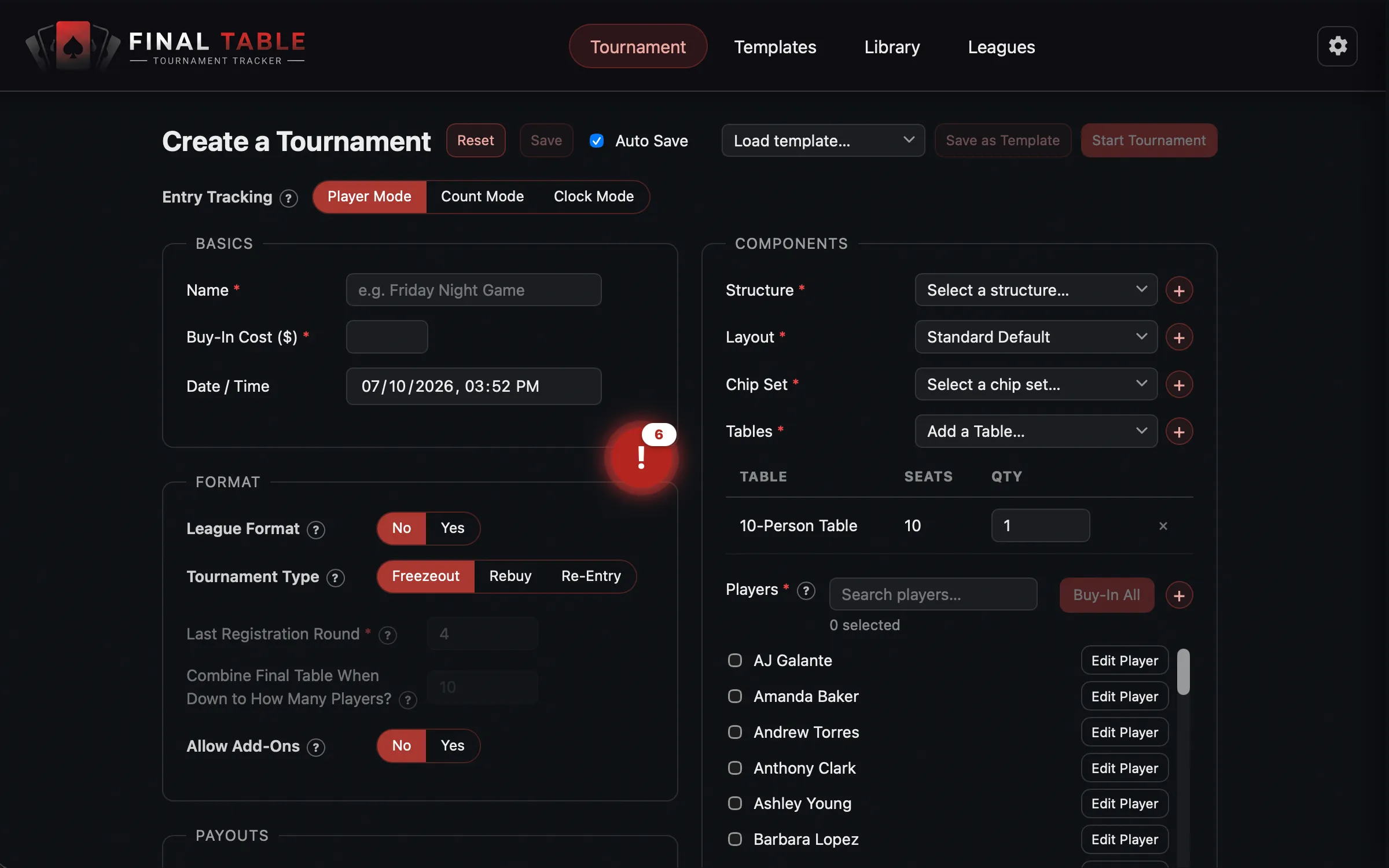 Format, rebuys, re-entries, and add-ons.
Tournament Type
| Type | What it means |
|---|---|
| Freezeout | You buy in once. When you are out, you are out. |
| Rebuy | A busted player can buy back in and keep their seat, within the registration window. |
| Re-Entry | A busted player can enter again as a brand new entry, within the registration window. |
Pick Rebuy or Re-Entry and you get a Max rebuys per player (or Max re-entries per player) field. Leave it blank for unlimited.
Last Registration Round
This is the single most important field in the Format section, and it does three jobs at once. It sets the last level at which a player can:
- late-register,
- rebuy,
- and re-enter.
When the clock passes this level, all three close together.
Set it to 0 for no late registration at all. You cannot pick a rebuy or re-entry format and set this to 0, because that would be a freezeout with extra steps. The app will tell you: “Rebuys/re-entries need a window - set Last Registration Round above 0, or choose Freezeout.”
It is disabled until you have chosen a blind structure (it needs to know how many levels exist), and it is capped at the number of levels in that structure.
A small kindness the app does for you: if your registration window ends on a level that is immediately followed by a break, the window stays open through the break. Nobody has to sprint back from the bathroom to rebuy.
Add-Ons
Add-ons are a separate window, and they are not governed by Last Registration Round. They happen at one specific moment.
| Field | What it does | Limits |
|---|---|---|
| Allow Add-Ons | Yes or No. | Off by default. |
| Cost ($) | What the add-on costs. | Goes into the prize pool. Defaults to your tournament’s buy-in. |
| Chips per add-on | How many tournament chips the player receives. | Defaults to your chip set count. |
| Max add-ons | How many each player may take. | Blank means unlimited. |
| Add-On Round | The round add-ons happen in. | 0 means before the tournament starts. The Add-Ons button on the live screen is only active while the clock is on this exact round. |
Combine Final Table
Combine Final Table When Down to How Many Players? Player Mode only, and only relevant if you have more than one table.
When the field shrinks to this number, the app offers to collapse everyone onto one table and redraw the seats at random. Leave it blank and it defaults to a full table (whatever your largest table seats).
You are always asked, never forced. See Seating.
Components
This is where your Library pays off. Everything here is a pick from something you already built.
Components: structure, chip set, layout, tables, and players.
| Field | What it does | Limits |
|---|---|---|
| Structure | The blind schedule. | Required. |
| Layout | Which live screen design to use. Standard Default is the built-in one. | Premium only. Everyone else gets the built-in screen. |
| Chip Set | The starting stack. In Count Mode this is replaced by a plain Starting Chips / Player number. | Required. |
| Tables | Which tables are in play, and how many of each. | Required. The label shows your cap, for example Tables (Max 2). Paid: 2 tables. Premium: effectively unlimited. |
| Players | A checklist of your roster. Tick who is here tonight. | Player Mode only. |
Buy-ins
Ticking a player in the list is not the same as them paying. Use Buy-In Player, Buy-In All, Undo Buy-In, and Undo All to record who has actually paid. Only bought-in players get seats and count toward the prize pool.
The buy-in buttons will refuse and tell you why:
- “Set a buy-in cost first”
- “Add a table with seats first”
- “No open seats. Add seats/tables or undo a buy-in.”
- “Only N seats - can’t buy in all M. Add tables or seats.”
Careful with tables. If you remove a table (or reduce its count) and that leaves fewer seats than you have bought-in players, the app warns you that all buy-ins will be undone, and makes you confirm, as it cannot seat people in chairs that do not exist.
House Rules
A rich-text editor at the bottom. Type or paste whatever your table argues about: chop rules, string bets, phones at the table, who buys the pizza.
Whatever you write here can be pulled up during play by pressing ? or / on the
live screen. If you leave it empty, the Rules button never appears.
Starting
The Start Tournament button is guarded. If it will not go, look at the floating Ready to start? badge, which lists exactly what is missing. Common blockers:
- the tournament has no name, or the name is already used
- no structure, no chip set, or no tables
- payouts do not add up (see Payouts and Rake)
- players are not all seated, or the tables are not balanced (see Seating)
On the Paid tier you can only have one tournament running at a time. If one is already live, the app will offer to take you to it rather than starting a second. Premium can run as many as you like, each in its own window.
What is locked once it starts
Once the tournament is running, most of this screen is frozen: buy-in, format, entry mode, chip set, tables, structure choice, and layout. This is deliberate, because changing them mid-event would silently move money and seats around under the players.
Three things stay editable while live:
- The payout sheet, via the Manage Payouts action, once the registration window has closed. Rake is the exception: it locks when the tournament starts, even though it sits in the same Payouts section. Changing the house cut mid-event would move money that players can already see on screen, so set it before you start.
- The blind structure, but only its future levels. You can edit, add, remove, and reorder any level below the one on the clock; the current level and everything already played stay locked. You cannot swap in a different structure. See Running a Tournament.
- House rules, though only from this setup screen. The live screen shows them read-only.
This section is about the setup you lock in, so do not read it as “the tournament is frozen.” Plenty stays live once the clock is running: knockouts and undo, rebuys, add-ons, late entries, and full seating management. Those are all covered in Running a Tournament.
Saving it for next week
Save as Template stores the whole setup, minus the players and the date. Next week, load it, tick tonight’s players, and start.
If you tick League Format, the template is filed away for use by Leagues instead, and it will not clutter your ordinary template list. That is covered in Leagues and Seasons.