
Display on TV
Putting the clock on the big screen, with a QR code, a PIN, a Chromecast, or plain screen mirroring. Plus what to do when it does not work.
Paid and Premium. The whole point of a tournament clock is that the room can see it.
Press c on the live screen, or click Display on TV in the floating menu. The display starts the moment
the modal opens: there is no separate “start” button to hunt for.
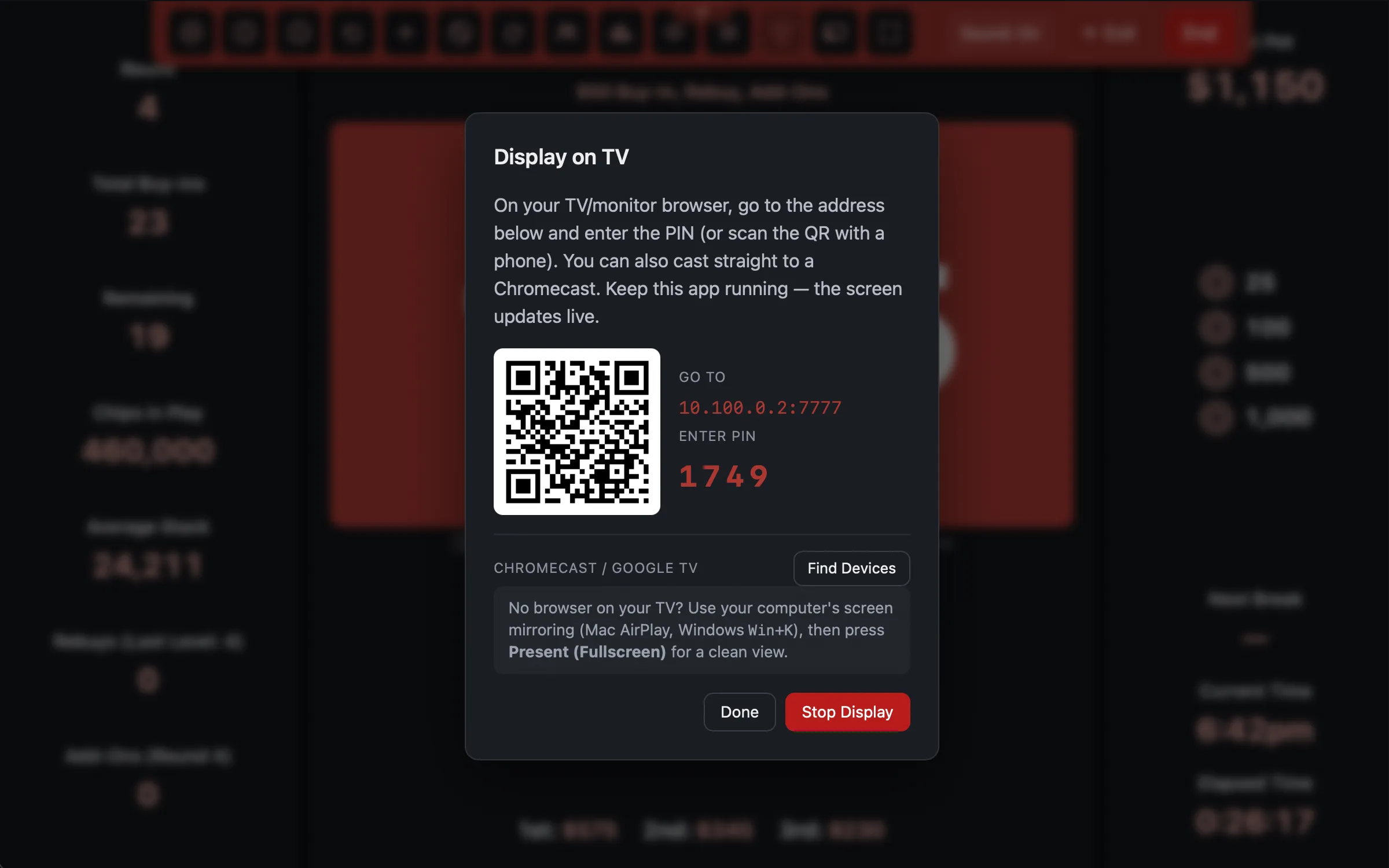 Display on or Cast to a TV: a URL, a 6-digit PIN, a QR code, and any Chromecast on the network.
How it works
Your computer starts a small web server on your own network. The TV, or a phone, or a tablet, opens that address and shows the live clock.
Nothing goes over the internet. It never leaves your house. You do not need a connection, an account, or a login. The only requirement is that the TV and the computer are on the same WiFi.
You get three things in the modal:
- A web address, like
192.168.1.42:7777. Type this into any browser: a smart TV, a spare laptop, an old tablet propped against the chip tray. - A 6-digit PIN. The page asks for it before it will show anything.
- A QR code. Scan it with a phone and it goes straight in, because the QR carries the PIN with it. No typing.
Keep the app running. The screen updates live, about once a second, and the TV ticks the clock along in between.
Casting to a Chromecast or Google TV
If you have a Chromecast, you do not need to touch the TV at all.
Under Chromecast / Google TV, click Find Devices. The app scans your network for about three seconds and lists what it finds. Click Cast next to the one you want. Disconnect sends it back to idle.
No browser on your TV?
Plenty of TVs have no usable browser. Use your computer’s built-in screen mirroring instead:
- Mac: AirPlay to the TV.
- Windows: press Win+K.
Then press f in the app for Present (Fullscreen), which puts the live screen
edge-to-edge with no window chrome. Mirror that and you have a perfectly good tournament
display.
More than one tournament at once
Premium only. Each running tournament casts on its own channel. The PIN is what decides which tournament a screen is showing, so two events in the same room can each have their own TV, from the same computer, with no interference.
Stop Display only stops the tournament you are looking at. Other live windows keep casting.
Troubleshooting
The cast is LAN-only, which makes it fast and private, but it also means the network has to cooperate. In rough order of likelihood:
The TV cannot reach the address. Both devices must be on the same WiFi network. A phone on cellular data will not work. A guest network usually will not work either: many routers have “client isolation” or “AP isolation” switched on for guest WiFi, which is specifically designed to stop devices talking to each other. Put both on the main network.
Your firewall is blocking it. On Windows especially, the first time the app opens its display server the firewall may ask for permission, and if that prompt was dismissed the TV will never connect. Allow the app through the firewall on private networks.
“Wrong PIN - try again.” The PIN is regenerated every time you start a display. If the TV was showing an older session, it is holding a stale PIN. Re-scan the QR or re-enter the current one.
“Waiting for host…” appears on the TV and the clock freezes. The TV has stopped hearing from your computer. Usually this means the app was closed, the computer went to sleep, or it dropped off the WiFi. The TV recovers on its own once the computer comes back.
“Could not start the display.” Something stopped the local server from starting. Click Try Again. If it keeps failing, another program may be holding the port, and restarting the app is the quickest fix.
“No Chromecast devices found on this network.” Chromecast discovery needs the computer and the Chromecast on the same network, and some networks block the discovery protocol it relies on. If the scan comes up empty but you know the device is there, fall back to the URL and PIN, or to screen mirroring. Both work.
If you are somewhere with hostile WiFi (a bar, a club, a hotel function room), use Present (Fullscreen) with an HDMI cable. It always works, and it needs no network at all.