
Getting Started
What Final Table Tracker is, how to install it, what happens the first time you open it, and how to get a tournament clock running in about ten minutes.
Final Table Tracker is a desktop app for running a poker tournament. It keeps the blind clock, tracks who bought in and who busted, seats the tables, works out the payouts, and puts a big readable clock on the TV so the room can see it.
It runs on your computer, not in a browser tab. Your tournament data lives on that computer and nowhere else. You do not need an internet connection to run an event, and there is no monthly fee to keep using it. You buy it once and you own it.
That does not mean your players are left in the dark. When a league night is over you can export the season standings as an image and paste it straight into your group chat, which is how most home games share a leaderboard anyway.
Coming later: standings online. We are building an optional subscription for hosts who would rather their players pull up the leaderboard on their phones between games, instead of scrolling back through a chat thread for last week’s picture.
It will not be a public web page. The standings will sit behind a password you set for your league and hand to your players, with a QR code that carries the password so a phone scan gets them straight in, exactly the way casting the clock to your TV already works. Players will not need to create accounts.
This is not available yet, and it will always be optional. The app you buy today stays fully offline, buy-once, and complete without it. Nothing about your tournaments goes online unless you deliberately choose to publish it.
Installing
The app runs on macOS and Windows. Download here, open the installer, and launch it like any other app. The download picker will offer you the build for the computer you are reading this on.
The first time you open it on macOS, the system may warn you that it was downloaded from the internet. That is the normal Gatekeeper prompt for any app installed outside the App Store. Click Open to continue.
The first thing you will see
On first launch the app shows one screen, titled “Help Improve Final Table?”. It has two checkboxes:
- Send crash reports. When something breaks, send the technical details so it can be fixed.
- Share anonymous usage statistics. Which features get used, so the right things get built next.
Both are off unless you tick them. Nothing is collected if you leave them alone and click Continue. Your tournament data is never part of either one: player names, results, and buy-in amounts never leave your computer under any setting. You can change your mind at any time in Settings, and there is a full explanation in the Privacy Policy.
Click Continue and you are in.
What you get at each tier
The app has three tiers, and it is worth knowing which one you are in, because it changes what you see on screen. Some of this guide describes things you may not have.
| Tier | What it is |
|---|---|
| Free | A blind clock, and the Structures library needed to build one (up to 10 levels). No player tracking, no seating, no payouts, no saved tournaments. Good for a quick game where you just need a timer on the screen. |
| Paid | The real product. Player rosters, buy-ins, seating, rebuys, add-ons, payouts, a saved history of every tournament, casting the clock to a TV, and full Leagues with seasons and standings. Up to two tables, and one tournament running at a time. |
| Premium | Everything in Paid, plus the things a bigger or busier game needs: Count Mode for anonymous buy-in tallies, automatic payout calculation, rake, custom live-screen layouts, effectively unlimited tables, more than one tournament running at once, and the ability to customize league scoring and the championship finale rather than picking a preset. |
Throughout this guide, anything Paid-only or Premium-only is marked. If a button described here is missing from your screen, check the tier note first.
The trial
The app arrives with a 14-day free trial of every Paid and Premium feature already built in. You do not need a credit card, and you do not need to activate anything: install it and everything in this guide works.
When the trial is up, the paid features lock and the app reverts to the Free tier. Your data stays exactly where it is. Nothing is deleted, nothing is exported, nothing is held hostage. Your players, structures, chip sets, and tournament history are all still on your computer, waiting, and buying a license unlocks them again untouched.
The point of the trial is to let you run a couple of real games on it before you decide, which is also why purchases are final. Use the two weeks properly.
A note on what “Free” really means. Free is not a locked-down demo. You can build your own blind structures from scratch, with your own blinds, antes, game types, and level lengths, save them to your library, and run the clock off them for real. For a lot of home games, that is the whole job.
The limits are these: a Free structure can be up to 10 levels, and cannot contain breaks, and Free does not save tournaments, so when you close one it is gone. Everything else in this guide (players, seating, buy-ins, payouts, history, leagues, casting to the TV) needs a paid tier.
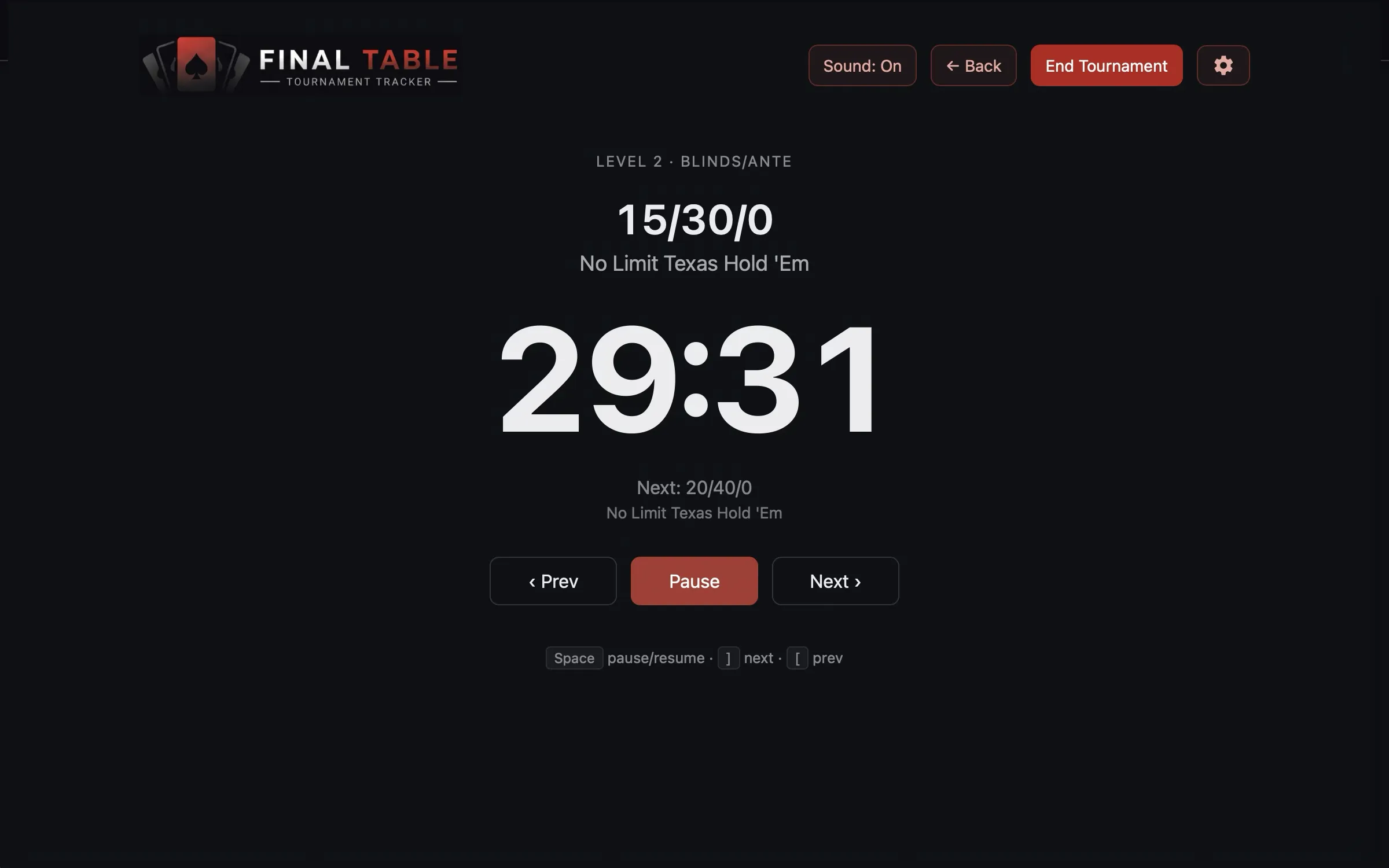 The Free tier: your structure, running as a clock.
Run your first tournament
Here is the shortest path from a fresh install to a running clock. It takes about ten minutes, most of which is typing in your players.
1. Build a blind structure
Go to Library → Structures and click + New Structure.
A structure is the schedule of blind levels: 25/50 for twenty minutes, then 50/100 for twenty minutes, and so on. Give it a name, then add your levels.
If you are on Paid or Premium, tick Auto-Suggest Blind Levels before you start. Fill in just the first level (say, small blind 25, big blind 50, duration 20), and then each click of + Add Level appends the next twelve standard tournament levels for you, scaled up from where you left off. It saves a lot of typing and it produces a sane ladder.
Save it. This structure is now reusable in every future tournament, so you only do this once.
2. Add your players
(On the Free tier, skip ahead to step 5. Free runs the clock straight off your structure, with no players, chips, tables, or payouts to set up, so steps 2 through 4 do not apply to you.)
Go to Library → Players and click + Add Player. First name is required, last name is optional. Add everyone you expect at the table.
You only ever do this once per person. Players stay in your library, accumulate lifetime statistics across every tournament they play, and are picked from a checklist next time.
3. Set up your chips and tables
Library → Chips has two tabs. On Individual Chips, add each denomination you own: a name and a chip value (this is the tournament value of the chip, not what it cost you). On Chip Sets, build a starting stack: pick a chip, say how many of them each player gets, and repeat. The app adds it up and that total becomes the starting stack.
Library → Tables: add one entry per physical table, with the number of seats it has.
4. Create the tournament
Go to the Tournament tab. Give it a name and a buy-in amount, choose the structure, chip set, and tables you just made, and tick the players who are actually here tonight.
Set the payouts. Decide who gets paid and how much, either by hand or (on Premium) automatically from the size of the field.
Seat everyone. The quickest way is to open the seating board and hit Randomize.
5. Start it
Click Start. The live screen takes over: a large clock, the current and next blinds, the prize pool, and how many players are left.
Press Space to start and pause the clock. Press x when someone busts. Press
c to put the clock on the TV.
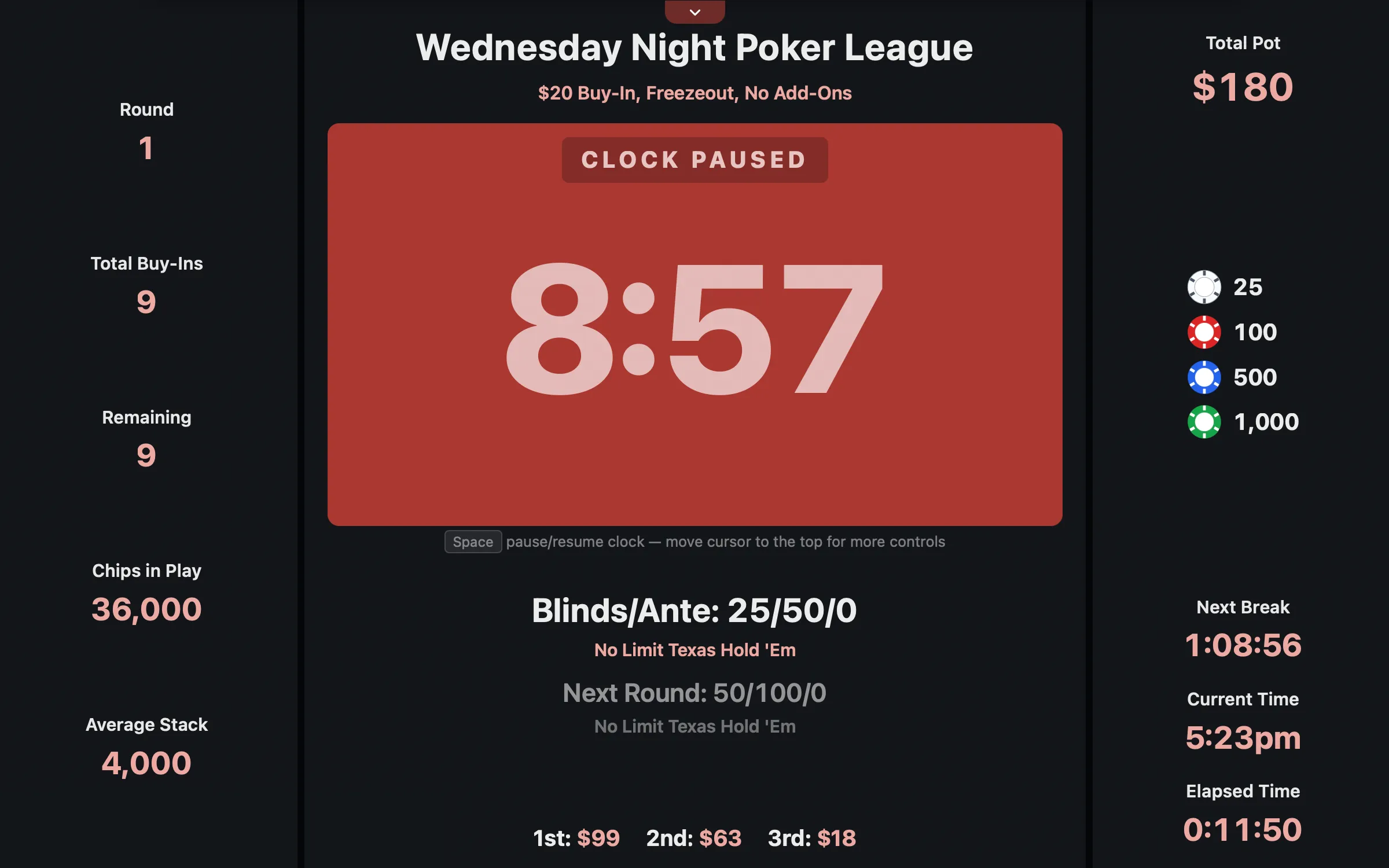 The live screen. This is what the room sees all night.
That is a tournament. Everything else in this guide is detail.
Where to go next
- If you want to understand the pieces you just built, read The Library.
- If you want the full tournament setup screen explained field by field, read Creating a Tournament.
- If you want to run a season with standings and a points race, read Leagues and Seasons.