
The Library
Structures, Players, Tables, Chips, Chip Sets, and Layouts. The reusable pieces every tournament is built from, field by field.
The Library is where you keep the reusable pieces: your blind structures, your players, your tables, your chips, and (on Premium) your custom screen layouts. You build them once and then pick from them every time you run an event.
It is the only tab the Free tier can see, and even then only the Structures section of it.
The one rule worth learning first
When you use something from the Library, the app takes a copy of it, not a link to it.
Put a chip worth 25 into a chip set, and that set remembers “25” forever. Go back and change that chip to 100 in the library later, and the set you already built still says 25. Start a tournament from a structure, and that tournament keeps its own copy of the structure. Editing the structure afterwards will not reach back and change the tournament that is already running.
This is deliberate, and it is the single most important thing to understand about the Library. It means you can never break a past or running event by tidying up your library. Rename things, fix a wrong value, delete a chip you do not own any more: history stays exactly as it was on the night.
The trade-off is the other direction. If you correct a chip value in the library because you got it wrong, the sets you already built do not get the correction. You have to open those sets and re-pick the chip to pull in the new value.
Structures
A structure is the blind schedule: the list of levels, how long each one lasts, and where the breaks fall. It is the backbone of a tournament, and it is the only Library section the Free tier can use.
The list shows each structure’s Name, its number of Levels, its number of Breaks, and the Total Time (every level and break added together, which is a decent estimate of how long your night will run).
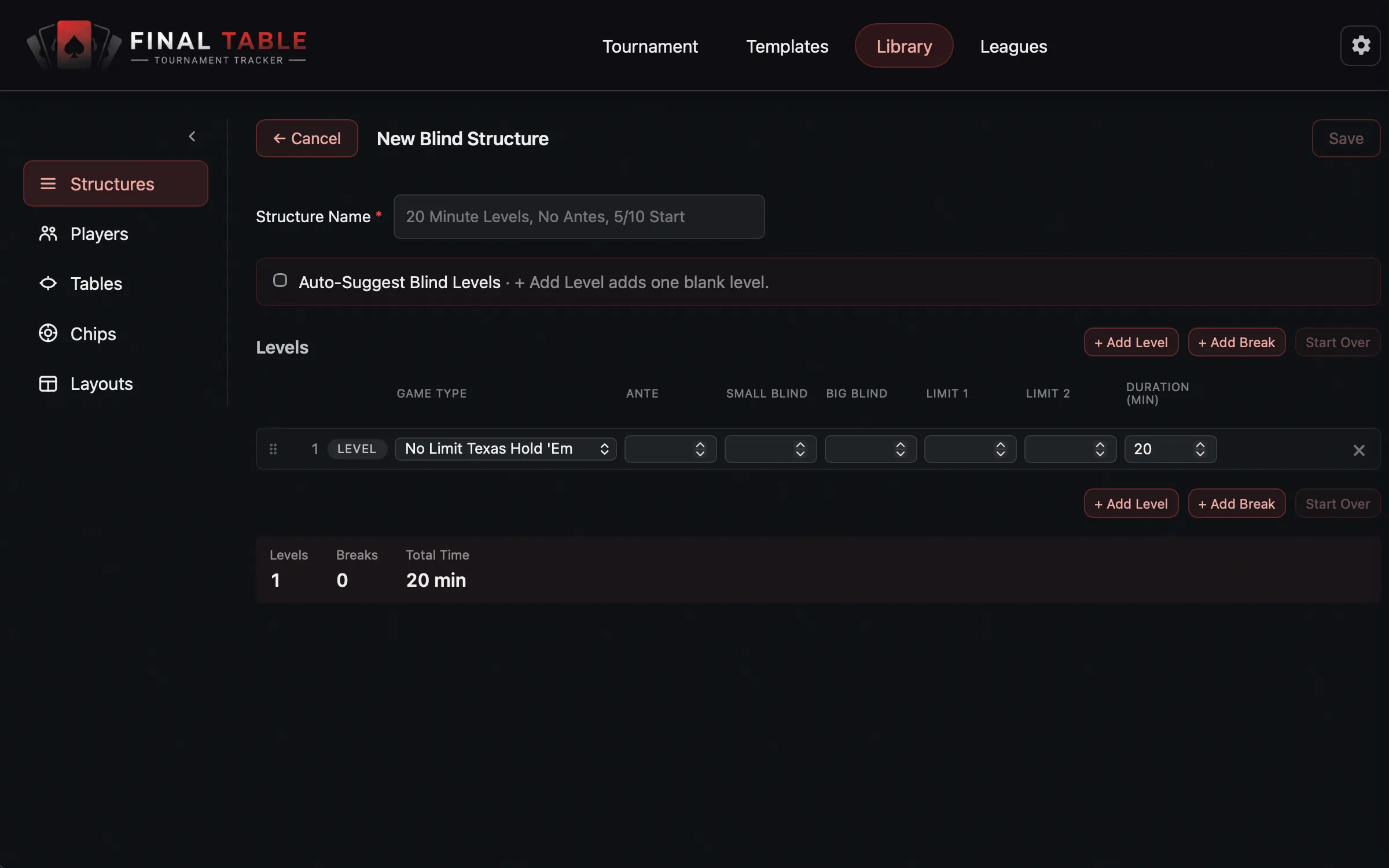 The structure editor: levels, breaks, and the running total at the bottom.
The structure itself
| Field | What it does | Limits |
|---|---|---|
| Structure Name | Required. What you will pick it by later. | Up to 150 characters. Two structures cannot share a name (it is checked ignoring case and spaces). |
| Auto-Suggest Blind Levels | A checkbox that changes what + Add Level does. See below. | Paid and Premium only, and it only appears when creating a new structure, not when editing an existing one. |
Levels
Each level is a row. Add them with + Add Level, drag them by the handle to reorder, and remove them with the button at the end of the row.
| Field | What it does | Limits |
|---|---|---|
| Game Type | Which game this level is played as. Four options: No Limit Texas Hold ’Em, Limit Texas Hold ’Em, Limit Omaha 8, and Pot Limit Omaha. | Purely informational. It is displayed on the live screen so the room knows what they are playing, but it does not change any of the clock, pot, or payout math. Defaults to No Limit Texas Hold ’Em. |
| Ante | The forced bet every player posts, if you use antes. | Optional. Leave it blank if this level has no ante. Cannot be negative. |
| Small Blind / Big Blind | The blinds for this level. | Both or neither. You cannot fill in one and leave the other blank. Both must be greater than zero, and the big blind must be at least the small blind. |
| Limit 1 / Limit 2 | The small bet and the big bet, for limit games. | Both or neither, and Limit 2 must be greater than Limit 1. Leave both blank for no-limit games. |
| Duration (Min) | How many minutes this level lasts. | Required, and must be greater than zero. Defaults to 20. |
Every level needs either a pair of blinds or a pair of limits (you can set both if you want, but you cannot leave both empty).
Breaks
Paid and Premium only. Add one with + Add Break, and drag it into position like a level.
| Field | What it does | Limits |
|---|---|---|
| Minutes | How long the break lasts. | Required, greater than zero. |
| Chip Up | Marks this break as the one where you color up the small chips. The live screen calls it out when the break arrives, and the Next Break tile flags it in advance, so you can warn the room before it lands and nobody has to remember. | Optional. |
| Label | What the break is called, for example “Dinner”. | Optional. Leave it blank and the app names them Break 1, Break 2, and so on, in order, when you save. |
Auto-Suggest Blind Levels
This is the feature that saves you the most typing, and it is worth understanding properly.
With the box unticked, + Add Level adds one blank row and you fill it in yourself.
With the box ticked, + Add Level appends the next twelve standard tournament levels, worked out from the last level you already have. It reads your last level’s small blind (or its Limit 1, for a limit game), finds the next value up on a curated ladder of real tournament blind values, and builds twelve levels from there. The big blind is set to double the small blind, and your last level’s game type and duration are carried across.
So the practical way to use it is: tick the box, type your first level by hand (say 25 / 50, twenty minutes), then click + Add Level and let it write the rest.
It needs a complete level to work from. If your last level does not have a duration and a full pair of blinds or limits, it cannot tell where to start, so it falls back to adding a single blank row.
Paid and Premium only, and only on a new structure. It is not available when editing a structure you already saved.
What the Free tier gets
Free structures are limited to 10 levels, with no breaks, and no Auto-Suggest. The + Add Level button stops working at ten. Upgrading lifts all three limits at once.
When Save will not let you save
Save stays grayed out until:
- the structure has a name, and it is not the same as another structure’s name
- there is at least one level (a structure of nothing but breaks is not valid)
- every row you have filled in passes the rules in the tables above
Rows you have left completely blank are ignored and quietly dropped, so a stray empty row at the bottom will not block you.
Deleting
Deleting a structure removes it from your library but does not touch tournaments that already used it, because of the copy rule at the top of this page. History is safe.
Players
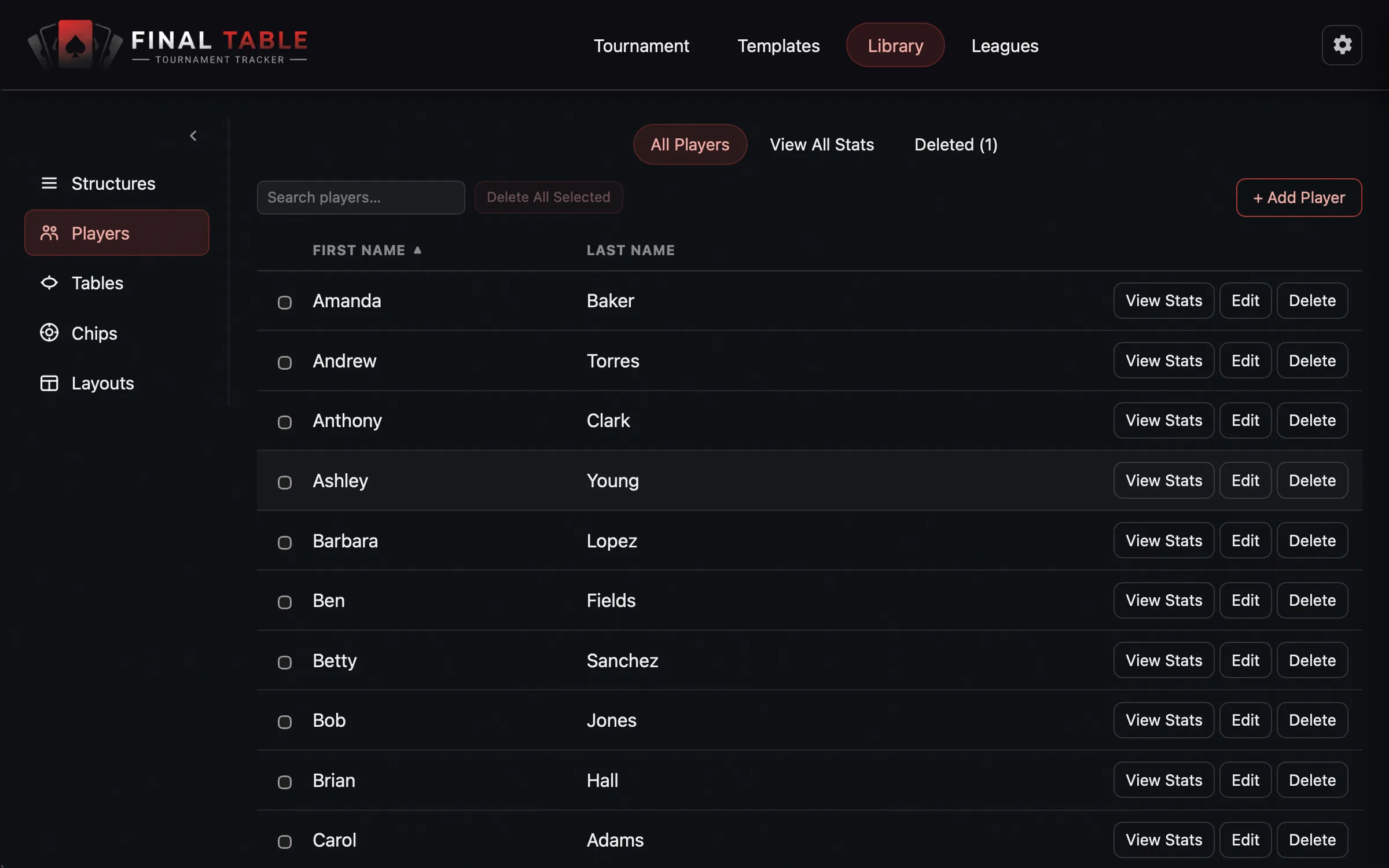 Your roster. Add someone once; they accumulate stats forever.
Your roster. Add someone once and they are available in every tournament from then on, accumulating lifetime statistics as they play.
| Field | What it does | Limits |
|---|---|---|
| First Name | Required. | No length limit. |
| Last Name | Optional. | No length limit. |
That is the whole form, deliberately. This is a list of people, not a CRM.
Two players can have the same name. The app does not stop you, because in real life two Daves do turn up. They are separate people with separate statistics, so if you have two Daves, give them last names or you will not be able to tell them apart on the seating board.
You can search the roster with the box at the top, and select several players with the checkboxes to delete them in one go.
View Stats on any player opens their lifetime record across every tournament they have played.
Deleting a player, and getting them back
Deleting a player removes them from your library but keeps them on record in every tournament they have already played in. Their past results, and the statistics of everyone who knocked them out, stay intact. You are hiding them from the roster, not erasing them from history.
Nothing stops you deleting a player, even one who is in a tournament right now, so take a little care with the bulk delete.
And if you delete the wrong person, you can undo it. A Deleted tab appears in the Players tab whenever there is anything in it, most recently deleted first, so an accident is right at the top. Click Restore and they are back.
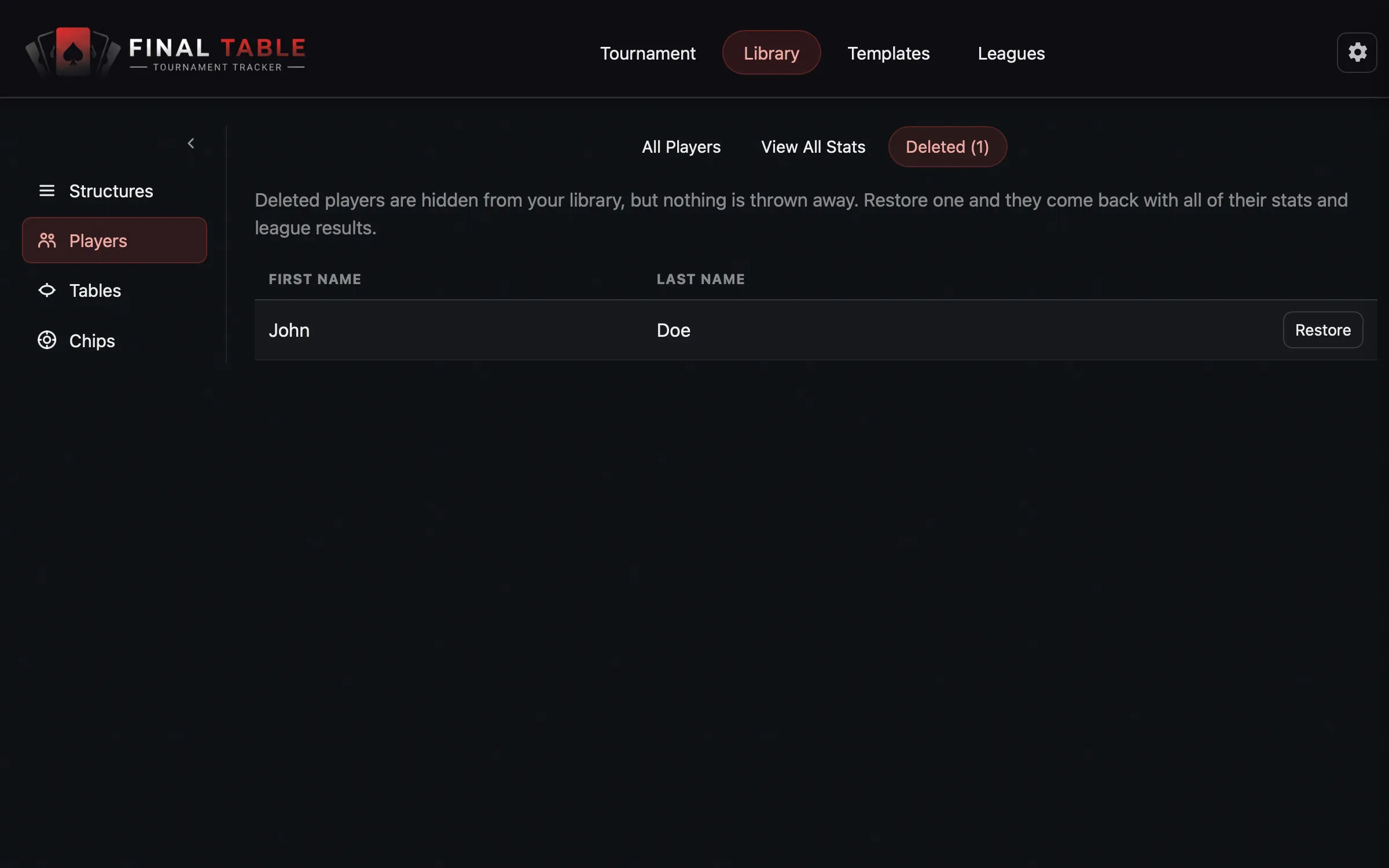
Restore them. Never re-type their name. Restoring brings the same person back, with every statistic and league result attached. Typing the name in again creates a second person who happens to share a name, and from then on their history is split in two forever: half their games under one entry, half under the other. Nothing in the app will warn you, because two players are genuinely allowed to have the same name.
View All Stats
The Players tab has a second view: View All Stats. It is the leaderboard across your whole poker history, and it is the payoff for keeping a player library at all.
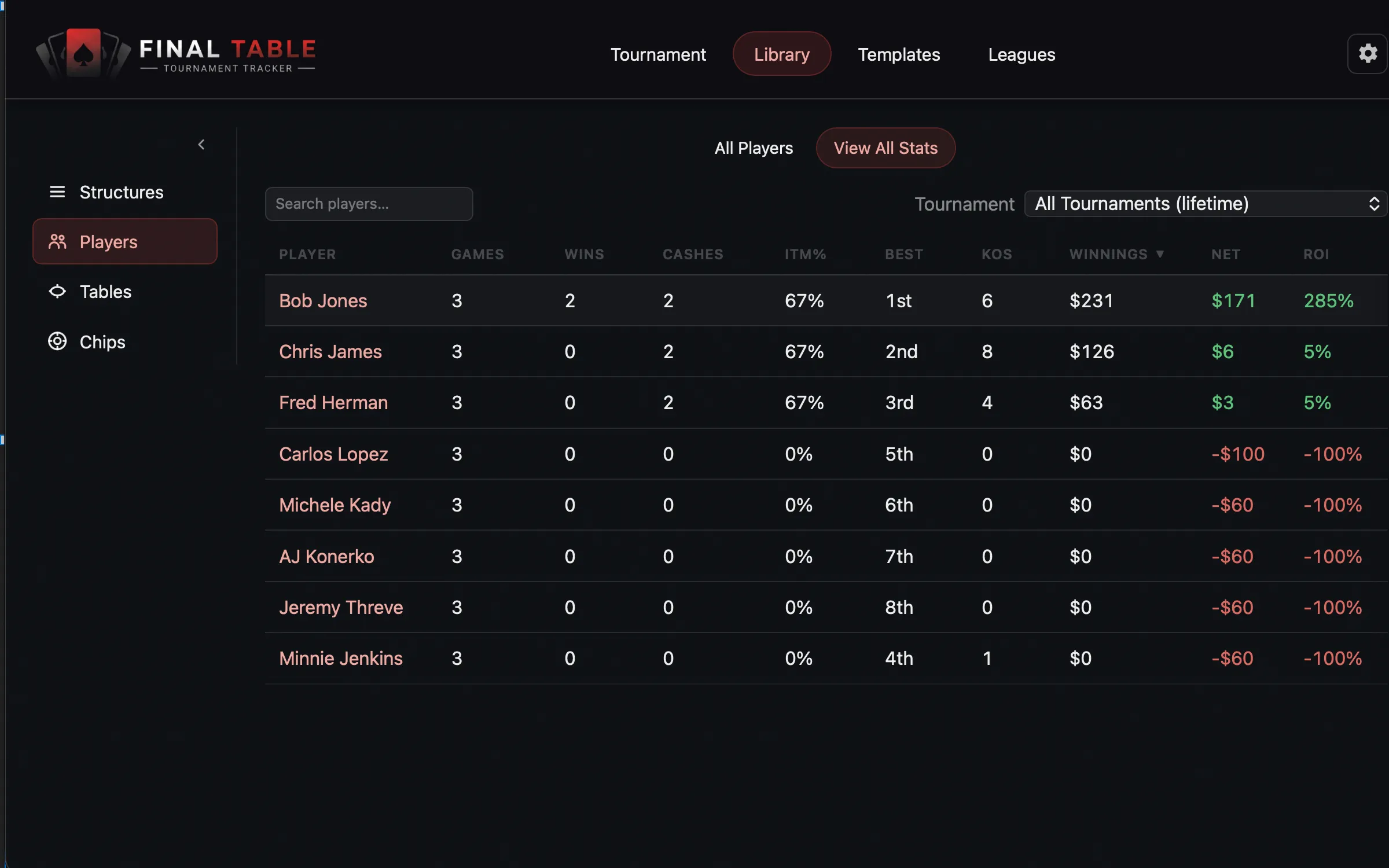
A dropdown at the top chooses what you are looking at:
All Tournaments (the default) is the lifetime table. Every column sorts.
| Column | What it means |
|---|---|
| Games | Tournaments entered. |
| Wins | Outright victories. |
| Cashes | Times they finished in the money. |
| ITM% | Cashes as a share of games. The honest measure of a steady player. |
| Best | Best finish ever. |
| KOs | Knockouts dealt. |
| Winnings | Total money won. |
| Net | Winnings minus everything they paid in (buy-ins, rebuys, add-ons). The number people actually argue about. |
| ROI | Net as a percentage of what they staked. |
Pick a single tournament from the dropdown instead, and the table becomes that night’s result: Place, KOs, Rebuys, Re-Entries, Add-Ons, Winnings, Spent, and Net, player by player.
There is a search box for when the roster gets long, and clicking any player’s name opens their full record.
Two things worth knowing. Deleted players are not listed (restore them and they reappear, with their numbers intact). And every figure is calculated fresh from the games themselves, never stored, so there is no running total to drift out of step with reality: correct a result and the leaderboard corrects with it.
Tables
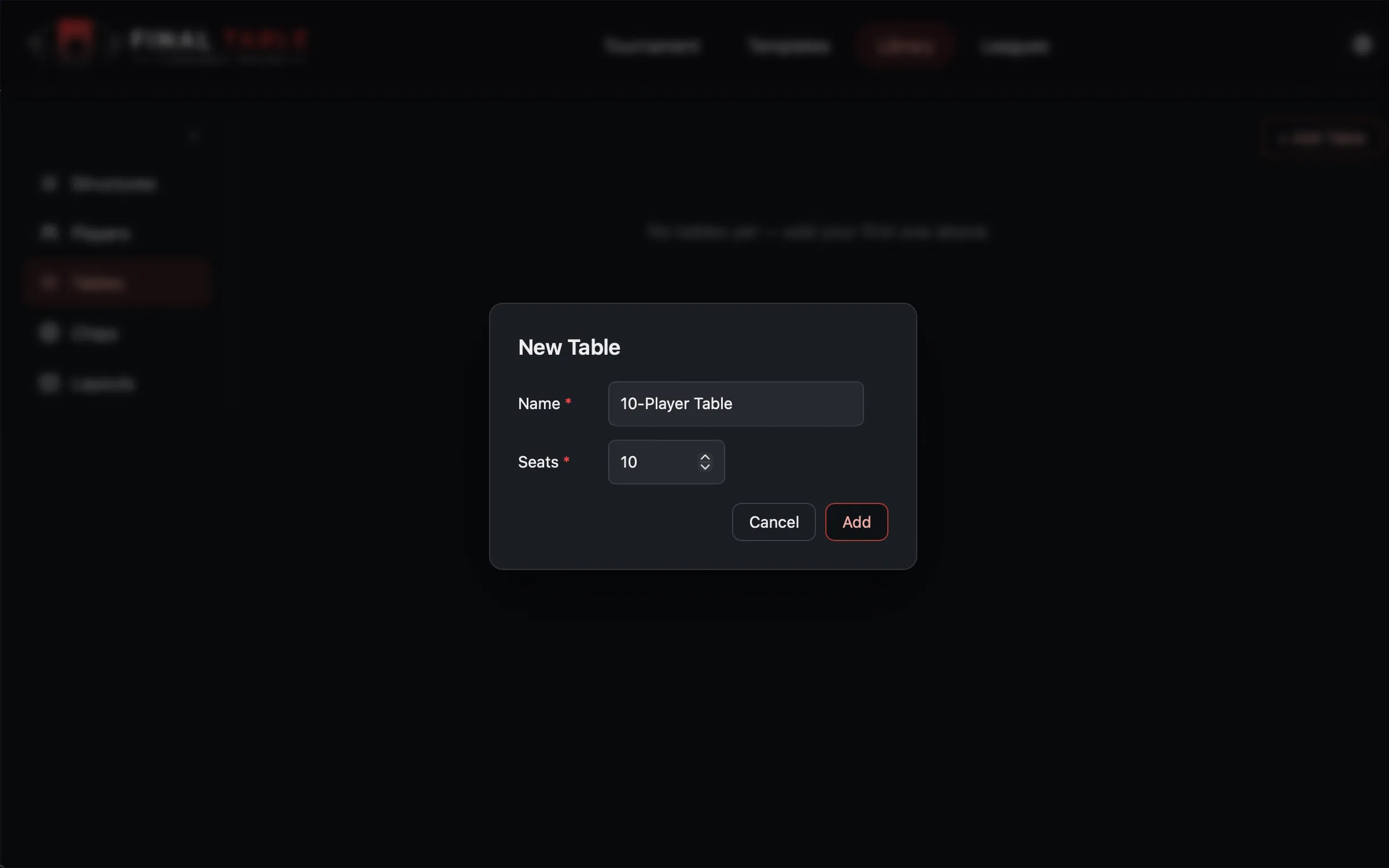 One entry per physical table in the room.
One entry per physical table in the room.
| Field | What it does | Limits |
|---|---|---|
| Name | What you call this table, for example Main, Table 2, or Feature. | Required. No length limit. Duplicate names are allowed, though there is no good reason to have two tables called Main. |
| Seats | How many seats it has. | Required. A whole number from 1 to 10. Ten is the ceiling because nine players and a dealer is the practical maximum for a real poker table. |
How many tables you can actually use in a tournament depends on your tier: Paid can run two tables, Premium is effectively unlimited. You can save as many tables in the library as you like regardless. The cap applies when you build the tournament, not here.
Chips
Two tabs: Individual Chips, which is your physical chip case, and Chip Sets, which is a starting stack built out of those chips.
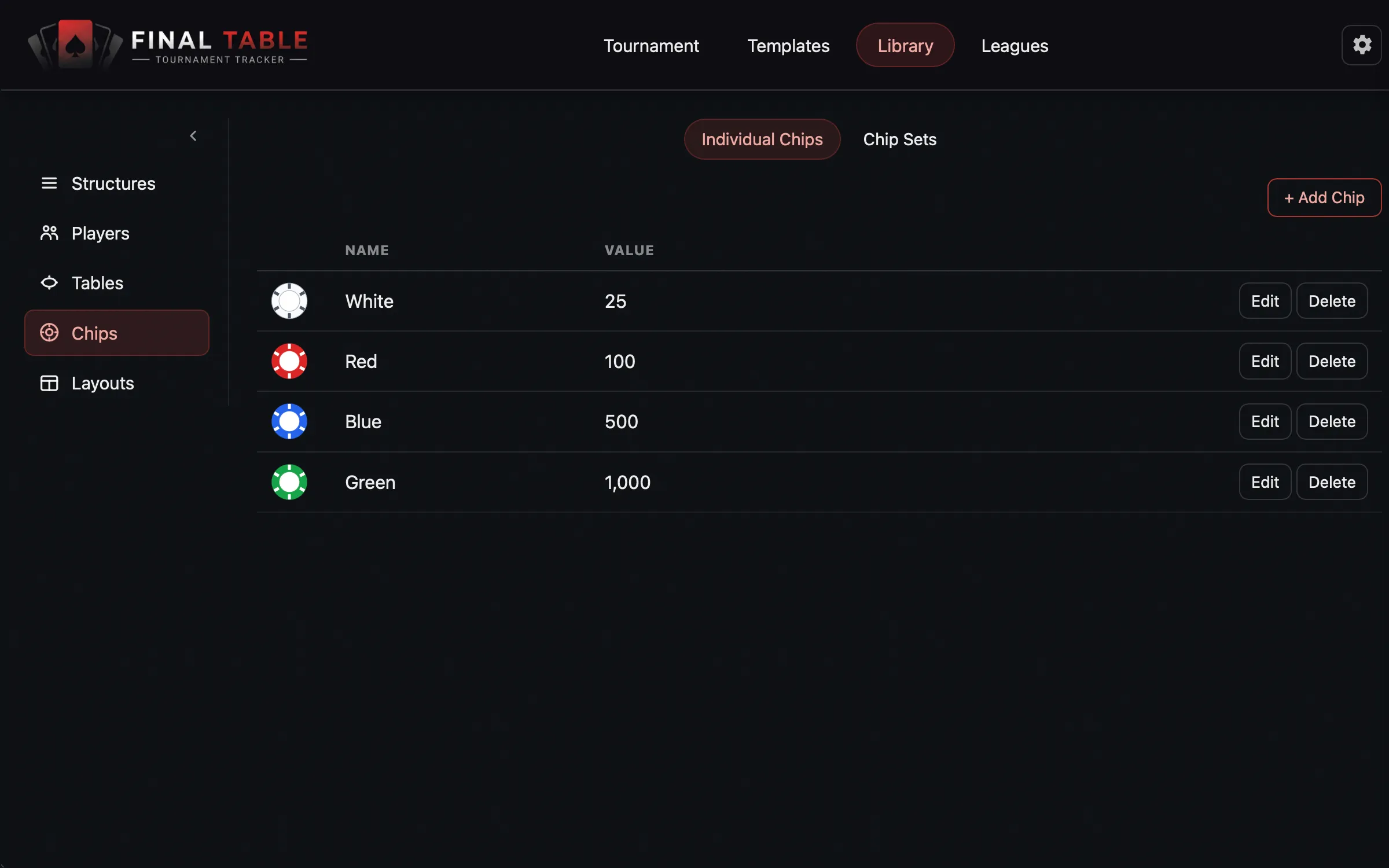 Individual Chips is your chip case. Chip Sets is a starting stack built from it.
Individual Chips
| Field | What it does | Limits |
|---|---|---|
| Name | What the chip is, for example White or Red 100. | Required. Up to 20 characters. Duplicate names are allowed. |
| Value | The chip’s value in tournament chips, not in dollars. A chip you bought for a dollar might be worth 25 in play. This field is the 25. | Required, and must be greater than zero. |
| Image | What the chip looks like, used on the live screen’s chip guide so players can see which chip is which. | Optional. |
For the image you can either Upload your own or pick one of eight built-in colors (white, red, blue, green, black, purple, orange, or pink).
An uploaded image must be a PNG, JPG, or GIF, and it must be square. If it is not square the app will tell you the dimensions it found and ask you to crop it first. Anything larger than 100 by 100 pixels is automatically scaled down to 100 by 100, so there is no point uploading anything bigger. There is no file size limit.
Deleting a chip is safe: chip sets that already use it keep the value they snapshotted, and past tournaments are untouched. Nothing blocks you from deleting a chip that is in use.
Chip Sets
A chip set is the stack each player starts with. You cannot create one until you have at least one chip in the Individual Chips tab.
| Field | What it does | Limits |
|---|---|---|
| Chip Set Name | Required. | Up to 50 characters. Two sets cannot share a name. |
| Chip | Pick a chip from your library for this row. | Each chip can appear only once in a set. Once you have used a chip, it disappears from the dropdown on the other rows. |
| Count | How many of that chip each player gets. | Required, a whole number of at least 1. |
The Value column is not editable. It shows the chip’s value as of the moment you picked it, which is the snapshot rule in action.
There is no starting stack field. The starting stack is the set: the app multiplies each chip’s value by its count, adds up the rows, and shows the total at the bottom as Starting Stack, alongside Total Chips (the physical number of chips each player receives). If you want a 20,000 starting stack, build a set that adds up to 20,000.
If Save is grayed out and the reason is not obvious, check that every row has both a chip and a count. A row with a chip picked but the count left blank will silently block the save without showing an error next to it. This is a rough edge we intend to fix.
Deleting a chip set does not affect tournaments that already used it. They keep their own copy.
Layouts
Premium only. A layout is a custom design for the live tournament screen: you decide what information appears on it and where it sits. If you never touch this, the app uses its built-in default screen, which is perfectly good.
| Field | What it does | Limits |
|---|---|---|
| Name | What the layout is called. | Required. Two layouts cannot share a name. |
| Modes | Which entry modes this layout is for: All, Player Only, or Count Only. Use it to build a layout that hides player-specific tiles for Count Mode events. | Never applies to Clock Mode, which always uses the bare timer. Defaults to All. |
| Background Color | The screen’s background color. | Any color. |
| Logo | Your own logo, for the Logo (Custom) tile. | Must be a PNG, JPG, or GIF. Unlike chip images, it is not resized or size-limited, so use a sensibly sized file. |
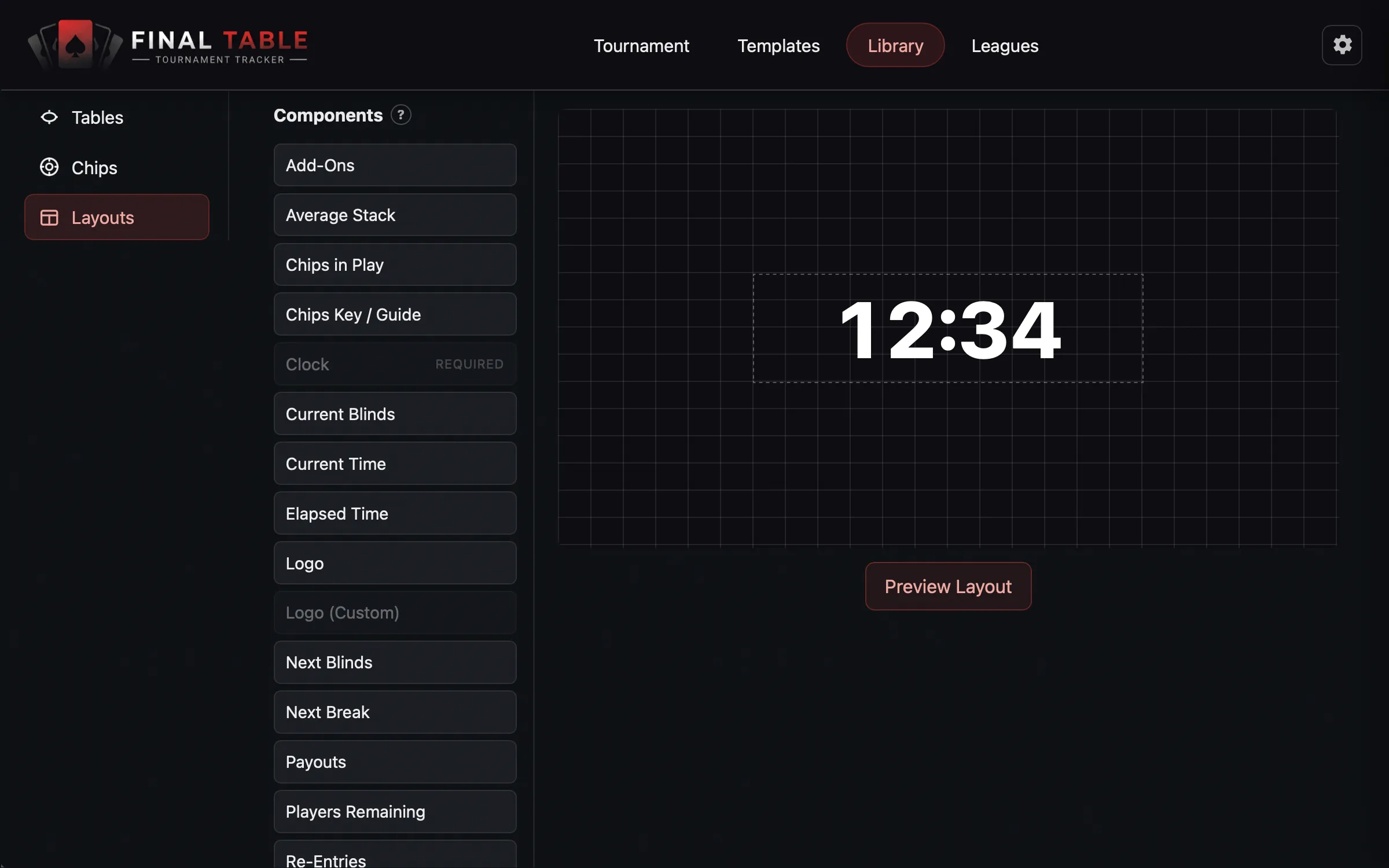 The layout canvas. Drag tiles from the palette; the Clock is mandatory.
Building the screen
The canvas is a 24 by 16 grid in a 16:9 shape, matching a TV. Drag a component from the palette onto the canvas, or click it to drop it in. Drag tiles to move them, drag a corner to resize, and nudge the selected tile a cell at a time with the arrow keys.
Tiles are allowed to overlap. Use Preview Layout to see it as the room will.
Each component can only be placed once. Once it is on the screen it is grayed out in the palette.
The components you can place
Clock is mandatory and cannot be removed. Everything else is optional:
Tournament Name, Current Blinds, Next Blinds, Total Pot, Round, Total Buy-Ins, Players Remaining, Chips in Play, Average Stack, Rebuys, Re-Entries, Add-Ons, Chips Key / Guide, Payouts, Next Break, Current Time, Elapsed Time, Logo, Logo (Custom), and Rules.
Logo (Custom) stays disabled until you have actually uploaded a logo in the field above.
When Save will not let you save
The layout needs a name, the name must be unique, and the Clock must be on the screen (which it will be, since you cannot remove it).